Notifications
Yontrack has the possibility to send notifications to different backends like webhooks, email, Slack messages, etc.
A notification is the association between an event occurring on an entity and sent to a given channel using some configuration.
For example, a notification can be:
- event: a build has been promoted
- entity: the build, the promotion level
- channel: email
- channel configuration: the subject & the email addresses
- an optional custom template
In this example, the body of the email would be a text like "Build B of branch R in project P has been promoted to BRONZE", which various links to Yontrack.
Note
By default, the notifications use the default templates of the events but a custom template can be provided.
Administrators of Yontrack can create and configure the different backends.
Subscriptions can be either local (subscribing to the events on a given branch) or global (subscribing to the events in all Yontrack, regardless of the entity).
Notification backends
See the appendixes for a complete list of the existing notification backends and their configurations.
Subscriptions
Subscriptions can be done at entity level (project, branch, promotion, etc.) or globally.
Local subscriptions
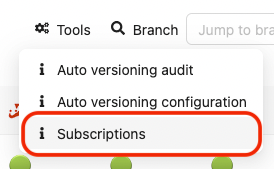
On an entity page (like the page for a project, a branch, etc.), go to the Tools menu and select Subscriptions:
On the following screen, you can manage the list of subscriptions at this entity level.
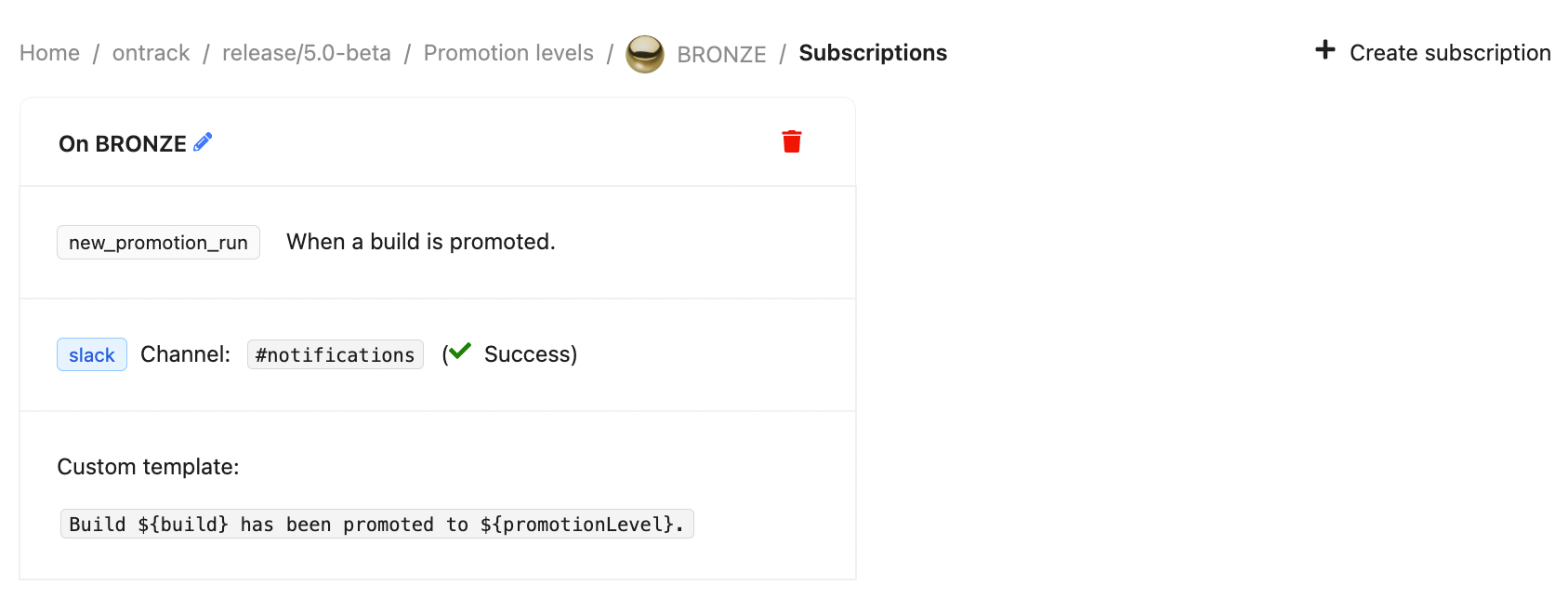
To create a subscription, select the New subscription command and enter the fields for the subscription:
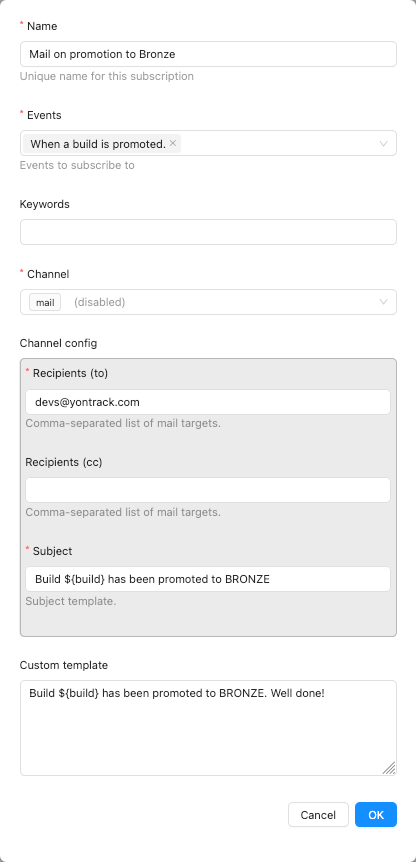
- name - name of the subscription, required and unique for the entity (or among the global subscriptions)
- events - list of events to listen to
- keywords - space-separated list of words which will be used to restrict the events being listened to. See Keywords
- channel - destination for the notification. Depending on the channel being selected, additional fields are needed (for example, for a Slack notification, the Slack channel is required)
- custom template - if provided, it'll override the default template associated with the event. See the templating section for its syntax.
In the subscription list, you can delete existing subscriptions.
Keywords
The keywords of a subscription restrict the events it listens to. They are separated by spaces, case-insensitive, and all of them must match the event:
- a plain keyword, like
GOLDormain, must be the name of one of the entities of the event (its branch, its promotion level, ...) or one of its values - three prefixed keywords select the events on their actor, the one who did what the event records. They are read from the actor of the event, never from its entities or values:
| Keyword | Matches the events done... |
|---|---|
actor:agent |
by an agent |
actor:human |
by a person - that is, not by an agent |
agent:<slug>[agent] or agent:<slug> |
by this agent, like agent:claude[agent] or agent:claude |
For example, actor:agent GOLD on the new_promotion_run event notifies when an agent promotes a
build to GOLD, and actor:human on the slot-pipeline-deployed event notifies when a person
marks a deployment as done.
Workflows triggered by a subscription are filtered the same way, through the keywords of their subscription.
Global subscriptions
The management of the global subscriptions is exactly the same as for the local ones, but for the fact that the global subscriptions are accessible through the Global subscriptions menu.
Note
Global subscriptions can be configured using CasC, each with its
required name. For example:
ontrack:
  extensions:
    notifications:
        global-subscriptions:
          - name: On Gold
            events:
              - new_promotion_run
            keywords: "GOLD main"
            channel: slack
            channelConfig:
              channel: "#my-channel"
            contentTemplate: |
              Promoted to ${promotionLevel}.
Recordings
For audit and troubleshooting purposes, all notifications are recorded and administrators can have access to them using the Notification records user menu:
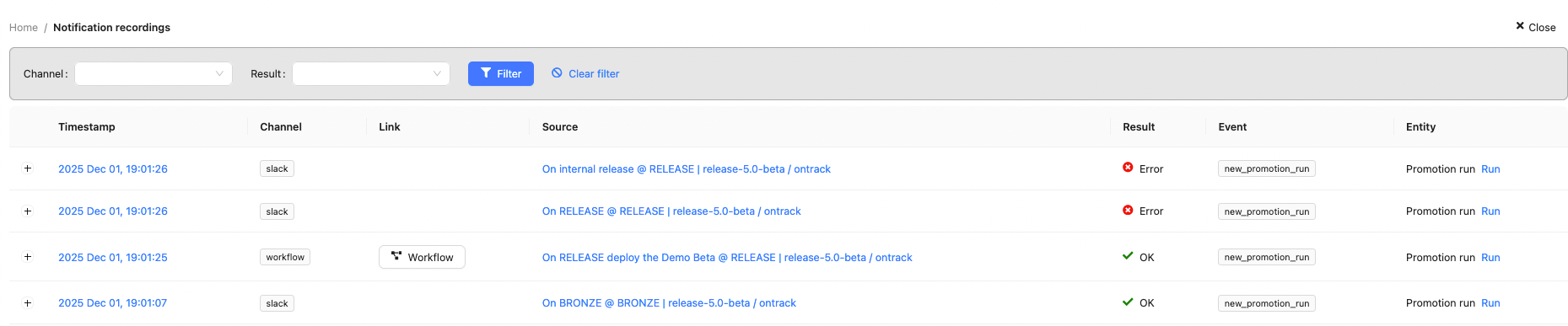
Each recording has the following columns:
- timestamp (UTC) - when was the notification actually sent
- channel - which channel was used by the notification
- link - link or button to access more information about the notification outcome
- source - source of the notification (like a subscription)
- result - outcome of the notification
- event - event that triggered the notification
- entity - entity linked to the notification
By clicking on the icon on the left, you can see more details about the notification:
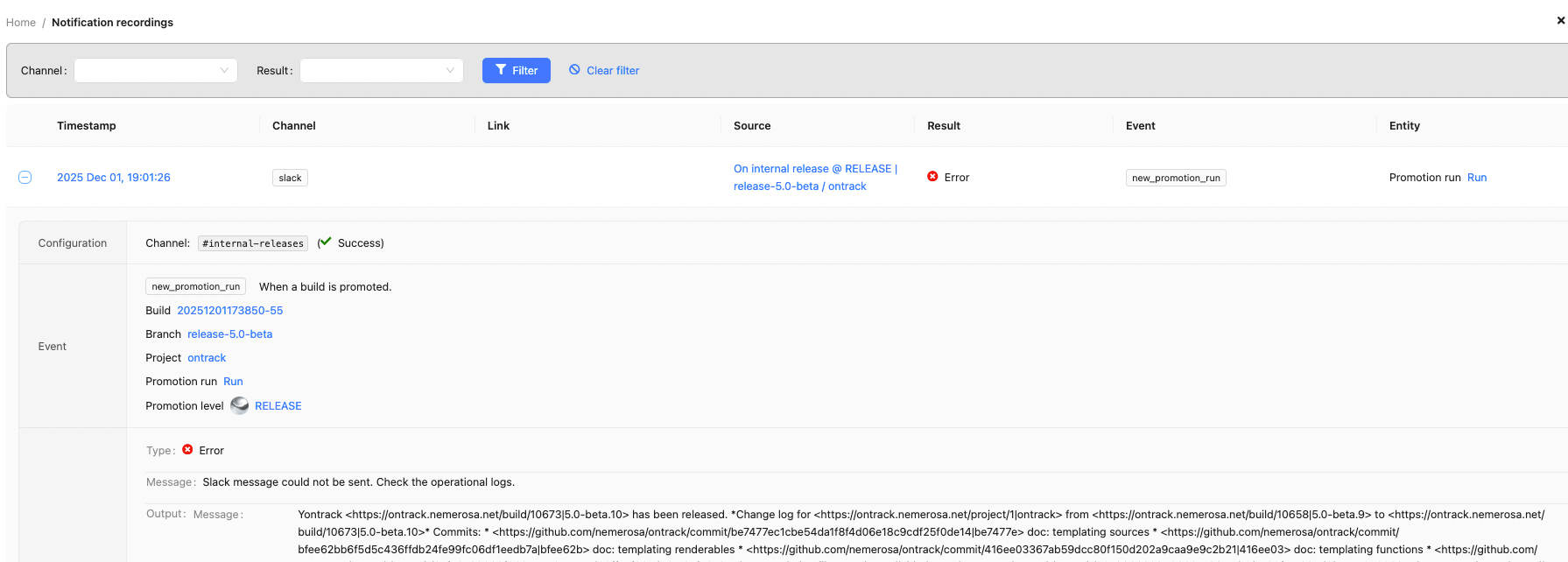
Finally, the administrator can filter recordings on their results or channels.
Note
A notification may be sent twice when Yontrack stops (for example during an upgrade) after it has sent the notification but before it has recorded it: the notification is then processed again on restart.
Examples
This section shows a number of custom templates for some events
Changelog on promotion
To send a changelog on a promotion, subscribe to the new_promotion_run event:
Change log:

${promotionRun.changelog}
If the project builds have linked to a dependency project's builds, it may be interesting to follow the links recursively:
Change log for ${build.release}:

${promotionRun.changelog}

Change log for the dependency:

${promotionRun.changelog?project=dependency}
Notification backends
Note
The whole list of notification backends is available in the references. You'll find below some detail about the most common ones.
- GitHub workflows - triggering a GitHub Actions workflow
- Jenkins - triggering a Jenkins job
- Ontrack validation - forwarding a validation, and its status, to another build
Notification metrics
See the reference