Auto-versioning
Beside collecting data about the performance of your delivery, Yontrack can in turn use this information to drive other automation processes.
One of these processes is auto-versioning on promotion, which propagates versions from one repository to others, using quality gates based on Yontrack promotions.
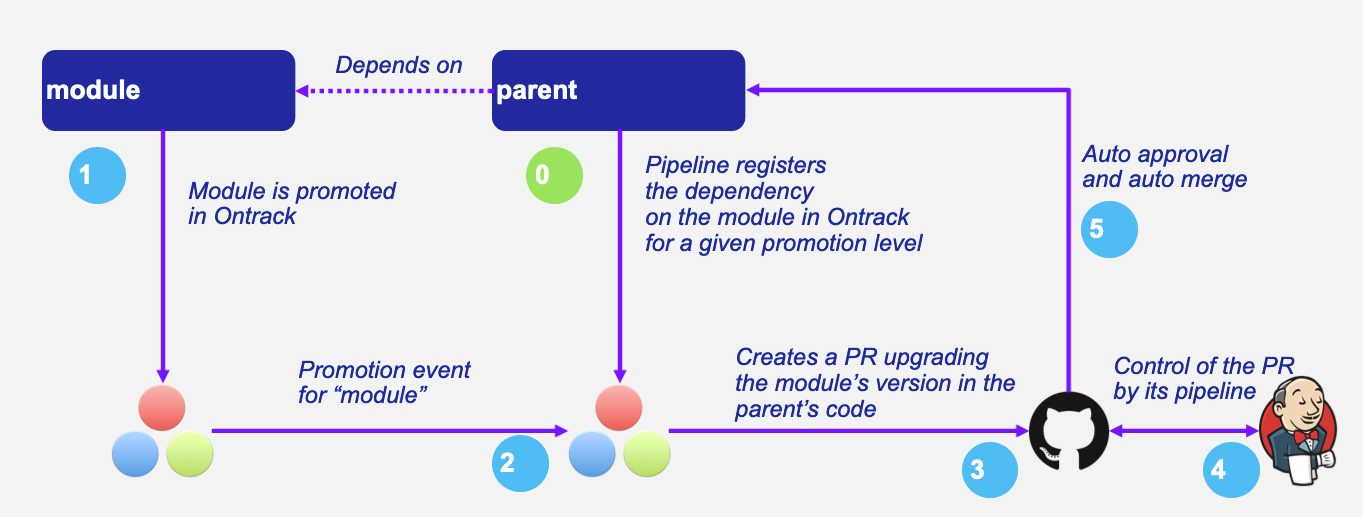
Let's imagine a project parent which has a dependency on a module, expressed through a version property somewhere
in a file. Ideally, whenever the module has a new version in a given range, we want this version to be used
automatically by the parent.
Manually, we would update the version in the parent, perform any needed post-processing (like a resolution of locks),
then commit and push the change. With some extra automation in the mix, this is a perfectly valid process, and external
tools can even perform it for you.
This becomes more complex whenever "having a new version of the module" is not enough of a criteria to have it used —
the release may not have been qualified yet by extra quality processes (long-running acceptance tests, for example).
That's where the concept of promotion plays an essential role:
- the
moduleis promoted - this starts the following process:
- Yontrack creates a pull request for the
parentwhere the version of themodulehas been changed to the one being promoted - any required post-processing is performed on this PR
- when the PR is ready to be merged (with all its controls), it's merged automatically
- Yontrack creates a pull request for the
The result is that versions are propagated automatically only when "promotion gates" are opened:
- one quality gate at the source, using promotions
- one quality gate at the target, using automated checks
This is valid from one module to a project, and can be easily extended to a full tree of dependent modules.
The diagram below shows how this works:
When not to use auto-versioning
While auto-versioning is pretty easy to put in place, it should not be used where traditional dependency management based on locks can be used instead for simple code libraries.
Auto-versioning on promotion is, however, particularly well suited to deal with situations like:
- modular monoliths
- GitOps repositories with fixed versions
How it works
Understanding the sequence below makes the rest of this page easier to follow. Each step is detailed in its own section.
- A build is promoted on a source project. This is the only trigger for auto-versioning on promotion. (An auto-versioning process can also be started explicitly from a workflow.)
-
Eligible target branches are collected. Yontrack looks for all branches whose auto-versioning configuration references this source project and this promotion. Each candidate is then checked, in order:
- the branch and its project must not be disabled, and the configuration itself must not be
disabled - the target project must pass the project-level rules
- the target project must be configured for a supported SCM: GitHub, Bitbucket Server or Bitbucket Cloud
- the promoted branch must be the one selected by the
sourceBranchexpression
Every candidate — accepted or rejected, with its rejection reason — is recorded in the auto-versioning trail.
- the branch and its project must not be disabled, and the configuration itself must not be
-
An auto-versioning order is created for each eligible branch, carrying the version to apply.
- The order is queued, and possibly throttled or scheduled.
- The order is processed: an upgrade branch is created, the target files are updated, and post-processing runs if configured. If the version in the target files is already the expected one, the process is aborted at this point without any change.
- The change lands on the target branch, either through a pull request or by a direct push.
- Side effects are applied: build link creation, back validation on the source build and notifications.
Every step is recorded in the audit log.
Configuration
Auto-versioning configurations are set at the level of the target branches — the branches which must be upgraded. A branch holds a list of configurations, one per source project & promotion it subscribes to.
The exact way to send the configuration depends on your type of client, but we recommend the CI config injection. See the integrations section for the alternatives.
branch:
  autoVersioning:
    configurations:
      - sourceProject: my-library
        sourceBranch: 'release/1\..*'
        sourcePromotion: IRON
        targetPath: gradle.properties
        targetProperty: my-library-version
The parameters available for each configuration are listed below.
-
additionalPaths - List - optional - Additional paths to change
-
autoApproval - Boolean - optional - Check if the PR must be approved automatically or not (
trueby default) -
autoApprovalMode - CLIENT, SCM - optional - Auto approval mode
-
backValidation - String - optional - Validation stamp to create on the source build (optional)
-
buildLinkCreation - Boolean - optional - Build link creation. True by default.
-
cronSchedule - String - optional - Cron schedule (when to start applying queued requests)
-
disabled - Boolean - optional - Set if this configuration is disabled
-
notifications - List - optional - List of notifications subscriptions to setup for this auto versioning
-
postProcessing - String - optional - Type of post processing to launch after the version has been updated
-
postProcessingConfig - JSON - optional - Configuration of the post processing
-
prBodyTemplate - String - optional - Template for the body of the pull request (optional)
-
prBodyTemplateFormat - String - optional - Template format for the body of the pull request (plain by default, html, markdown as possible values)
-
prTitleTemplate - String - optional - Template for the title of the pull request (optional)
-
pushMode - PR, PUSH - optional - Push mode
-
qualifier - String - optional - Qualifier for the build link to create (when links are created)
-
reviewers - List - optional - List of reviewers to always set on the pull request created by the auto versioning
-
sourceBranch - String - required - Branches to watch using a regular expression (aliases:
branch- deprecated) -
sourceProject - String - required - Project to watch (aliases:
project- deprecated) -
sourcePromotion - String - required - Promotion to watch (aliases:
promotion- deprecated) -
targetPath - String - required - Comma-separated list of file to update with the new version (aliases:
path- deprecated) -
targetProperty - String - optional - Optional replacement for the regex, using only a property name (aliases:
property- deprecated) -
targetPropertyRegex - String - optional - Optional regex to use on the targetProperty value (aliases:
propertyRegex- deprecated) -
targetPropertyType - String - optional - When targetProperty is defined, defines the type of property (defaults to Java properties file, but could be NPM, etc.) (aliases:
propertyType- deprecated) -
targetRegex - String - optional - Regex to use in the target file to identify the line to replace with the new version. The first matching group must be the version. (aliases:
regex- deprecated) -
upgradeBranchPattern - String - optional - Prefix to use for the upgrade branch in Git, defaults to
feature/auto-upgrade-<project>-<version>-<branch> -
validationStamp - String - optional - Validation stamp to create on auto versioning (optional)
-
versionRule - String - optional - ID of the rule checking the version to set against the version already present in the target files. No check is performed when this is not set.
-
versionRuleConfig - JSON - optional - Configuration of the version rule
-
versionSource - String - optional - Source of the version for the build. By default, uses the build label is the source project is configured so, or the build name itself. This allows the customization of this behavior.
Note
A JSON schema for the auto-versioning configuration is available for download in the UI, in the user menu, under User information > Resources. See JSON schemas to use it in your editor.
Legacy parameter names
Some parameters have shorter aliases (project, branch, promotion, path, property, propertyType,
regex, propertyRegex) kept for compatibility with the old Jenkins pipeline library. Prefer the source* and
target* names in new configurations.
Viewing the configuration
Once an auto-versioning configuration is set on a branch, it can be checked:
- in the branch page, in its information panel
- in the dedicated Tools > Auto versioning configuration page of the branch, which shows the full details of each configuration (paths, post-processing, schedule, notifications, …)
Disabling a configuration
Setting disabled: true on a configuration keeps it in place but stops it from ever triggering. This is useful to
temporarily suspend the auto-versioning of one dependency without removing its configuration.
Disabling the target branch or the target project has the same effect on all its configurations.
Selecting the source branch
The sourceBranch parameter designates the branch of the source project to watch. When a build is promoted, the
auto-versioning is triggered only if the promoted branch is the one selected by this parameter.
By default, sourceBranch is a regular expression, and Yontrack selects the branch with the highest version
among the branches matching it. The regular expression is matched against the Yontrack branch name first, then against
the SCM branch name (release/1.2 for example).
sourceBranch: 'release/1\..*'
In this scenario, the parent is notified of promotions on a series of branches, but Yontrack triggers the upgrade only if the promotion occurred on the latest branch:
- Yontrack gets the list of branches for the dependency
- orders them by descending version
- triggers an upgrade only if the promoted branch is the first in this list
Pros: simple, and allows auto upgrades fairly easily.
Cons: the dependency must really take care of a strong semantic versioning.
Branch expressions
For other strategies, sourceBranch can be set to &<id> or &<id>:<config>, where <id> is one of the branch
sources below.
| Expression | Selects |
|---|---|
®ex:<regex> |
The latest branch matching <regex> — the default behaviour |
&same |
The source branch having the exact same name as the target branch |
&most-recent:<regex> |
The most recent branch matching <regex> which has at least one build promoted |
&same-release[:<levels>] |
The latest release/ branch sharing the first <levels> version numbers with the target |
®ex
sourceBranch: '®ex:release/1\..*'
is equivalent to the default behaviour:
sourceBranch: 'release/1\..*'
&same
The source branch must have the exact same name as the target branch.
Example: if you have a branch release-1.24 on a parent project P and you want to get updates from a dependency
project only for the same branch, release-1.24, you can use:
sourceBranch: "&same"
&most-recent
Two branches (release/1.1 & release/1.2) are available for a project which is a dependency of an auto-versioned
parent project with the following default branch source:
sourceBranch: 'release/1\..*'
In this scenario, no promotion has been granted yet in release/1.2 of the dependency.
When 1.1 is promoted, Yontrack identifies a branch on the parent project to be a potential candidate for
auto-versioning. This branch is configured to accept only the latest release/1.* branch, which is — now — the
release/1.2. Therefore, a 1.1 promotion is no longer eligible as soon as the 1.2 branch was created (and registered
in Yontrack).
What exactly do we want to achieve? In this scenario, we always want the version promoted in 1.1 as long as there is none in 1.2:
- a 1.1 is promoted, and there is no such promotion in more recent branches (1.2, etc.) — we accept it
- a 1.1 is promoted, and there is already such a promotion in a more recent branch (1.2 for example) — we reject it
To implement this strategy, use:
sourceBranch: '&most-recent:release/1\..*'
Concretely, Yontrack orders the matching branches by descending version and selects the first one having at least one
build promoted to sourcePromotion. If no branch has such a promotion, the most recent branch is selected.
&same-release
On the same model as &same, &same-release is to be used in cases where the dependency and its parent follow the
same branch policy at release/ branch level, but only for a limited number of levels.
For example, a parent has release branches like release/1.24.10, with a dependency using release/1.24.15. We want
release/1.x.y to always depend on the latest release/1.x.z branch (using 1. as a common prefix).
One way to do this is to use sourceBranch: "release/1.24.*", but this would force you to always update the source
branch parameter for every branch (release/1.24.* in the release/1.24.x branch, release/1.25.* in the
release/1.25.x branch, etc.).
A better way, in this scenario, is:
sourceBranch: "&same-release:2"
This means:
- if you're on a
release/x.y.zbranch, userelease/x.y.*for the latest branch - for any other branch (
mainfor example), fall back to the&samebehaviour
Note
:2 means: take the first two numbers of the version of the release branch. By default, it'd be :1 and can be
omitted: sourceBranch: "&same-release".
Selecting the version
By default, the version to write in the target project is computed directly from the build which has been promoted:
- if the source project is configured to use the labels for the builds ("Build name display" property), the label (or release, or version) of the build is used. If this label is not present, the auto-versioning request is rejected
- if the source project is not configured, the build name is taken as the version
This computation can be adapted using the versionSource configuration parameter, whose value is <id> or
<id>/<config>:
versionSource |
Version used |
|---|---|
default (default) |
The behaviour described above |
name |
The name of the build, regardless of the source project configuration |
labelOnly |
The label attached to the build, regardless of the source project configuration. If there is no label, the request is rejected |
metaInfo/<name>metaInfo/<category>/<name> |
The value of a meta-information item of the build. If no such item is found, the request is rejected |
link/<project>link/<project>/<qualifier> |
The version of the build linked to the promoted build in <project>. See below |
Using a linked build as the version
The link version source is useful when the version to propagate is not carried by the promoted build itself, but by
one of the builds it links to.
versionSource: "link/my-library"
The promoted build must have exactly one link to a build of my-library (with the default qualifier); otherwise the
request is rejected. A build link qualifier can be given explicitly:
versionSource: "link/my-library/docker"
The version of the linked build is then computed using the default version source. Another version source can be
chained using the -> separator:
versionSource: "link/my-library/docker->metaInfo/rpmVersion"
Updating the target files
Auto-versioning works by updating one or more target files, designated by the targetPath parameter (or path for
additional paths). targetPath accepts a comma-separated list of files, all updated the same
way:
targetPath: "gradle.properties,tools/gradle.properties"
There are two ways to identify the version inside a target file: a regular expression, or a property.
Using a regular expression
The targetRegex parameter identifies the line to read and replace. The regular expression must:
- match the whole target line in the target file
- have a capturing group in position 1 identifying the version to read or replace
targetPath: versions.txt
targetRegex: 'my-library = (.*)'
Using a property
The targetProperty parameter designates a property in the target file, and targetPropertyType designates the type
of the file. The following types are supported:
targetPropertyType |
File type |
|---|---|
properties (default) |
Java properties file, typically gradle.properties |
npm |
NPM package file, typically package.json |
maven |
Maven POM file |
yaml |
YAML file, using the Spring Expression Language |
yaml-path |
YAML file, using JSON Path |
targetPropertyRegex can additionally be used to extract the version from the value which has been read (see the
yaml example below).
properties
The default type. The property is matched using <property>\s*=\s*(.*).
targetPath: gradle.properties
targetProperty: my-library-version
npm
targetProperty is the name of the dependency, looked up in the dependencies, optionalDependencies,
peerDependencies and devDependencies sections of the file, in this order. The first section containing the
dependency is the one being updated.
targetPath: package.json
targetPropertyType: npm
targetProperty: "@test/module"
Note
When writing the new version, a caret (^) prefix is always added — "@test/module": "^1.2.0". When reading the
current version, a leading ^ is stripped.
maven
The file to transform is a Maven pom.xml file. targetProperty is required to be one of the <properties>
elements of the file.
For example, given the following POM:
<project>
    <properties>
        <dep.version>1.10</dep.version>
        <yontrack.version>4.4.10</yontrack.version>
    </properties>
</project>
we can refer to the yontrack.version using the following auto-versioning configuration:
targetPath: pom.xml
targetPropertyType: maven
targetProperty: yontrack.version
yaml
Note
See yaml-path for a simpler alternative.
When targetPropertyType is set to yaml, targetProperty is expected to define a path inside the YAML file, using
the Spring Expression Language.
For example, given the following YAML file (a deployment fragment in Kubernetes):
---
apiVersion: apps/v1
kind: Deployment
metadata:
  name: my-app
spec:
  template:
    spec:
      containers:
        - name: component
          image: repo/component:0.1.1
To get to the repo/component:0.1.1 value, the path to set is:
#root.^[kind == 'Deployment' and metadata.name == 'my-app'].spec.template.spec.containers.^[name == 'component'].image
This expression illustrates the key points:
#rootrefers to the "root object" used to evaluate the expression — in our case, the list of YAML "documents", separated by---.^[<filter>]is an operator for a list, evaluating the given filter for each element until one element is found. Only the found element is returned.namereturns the value of thenameproperty on an object- literal strings use single quotes, for example
'Deployment'
The value being returned is repo/component:0.1.1, but we want to use 0.1.1 only. For this purpose, specify
targetPropertyRegex:
targetPropertyRegex: '^repo/component:(.*)$'
Note
Putting regular expressions in YAML files can be tricky. One safe way is to use single quotes to surround them.
Warning
The use of SpringEL can be difficult to understand for non-Spring developers. Prefer
yaml-path for new configurations.
yaml-path
When targetPropertyType is set to yaml-path, targetProperty is expected to define a
JSON Path inside the YAML file.
Given the following YAML file:
apiVersion: argoproj.io/v1alpha1
kind: Application
metadata:
  name: yontrack
  namespace: argocd
spec:
  project: yontrack-production-eu
  sources:
    - repoURL: https://github.com/yontrack/yontrack
      targetRevision: main
      ref: values
    - repoURL: registry/yontrack
      chart: yontrack-saas
      targetRevision: 1.0.2
You can refer to the second targetRevision field using:
targetPropertyType: yaml-path
targetProperty: '$.spec.sources[1].targetRevision'
TOML files
Support for TOML files is not available yet. See issue #1156.
Additional paths
The additionalPaths parameter allows the specification of additional paths to update, on top of the main one. Each
entry accepts path, regex, property, propertyRegex, propertyType — the same semantics as their target*
counterparts — and its own versionSource.
Note
This can somehow be considered as a form of post-processing, but without the need to call an external service.
configurations:
  - # ...
    targetPath: "gradle.properties"
    targetProperty: "one-version"
    additionalPaths:
      - path: package.json
        property: "@test/module"
        propertyType: npm
        versionSource: metaInfo/npmVersion
In this example, we want the auto-versioning to:
- update the
one-versionproperty of thegradle.propertiesfile using the version of the build having been promoted - update the
@test/moduledependency of thepackage.jsonfile, but this time using thenpmVersionmeta-information of the build having been promoted
Both changes are part of the same PR.
Post-processing is still possible, and runs after all changes have been applied (default path & additional paths).
Version rules
In some setups, an old build can be promoted again — by relaunching an old job which runs a validation and then a promotion. That promotion triggers an auto-versioning request carrying an older version, and, by default, auto-versioning applies it: it only checks that the version to set is different from the one already in the target file, so the file is rolled backwards.
A version rule guards against this. It is checked against the version actually present in the target file, and it is opt-in: with no rule configured, nothing changes.
configurations:
  - # ...
    versionRule: semver
Two parameters drive the check:
versionRule— ID of the rule. When absent, no check is performed.versionRuleConfig— configuration of the rule.
An unknown versionRule ID is rejected when the configuration is set, not when the next promotion happens.
The semver rule
The only built-in rule is semver. It parses both the version already present in the target file and the version to
set as semantic versions, and rejects the change when the new version has a lower precedence
than the current one.
The parsing is lenient: a leading v or V is accepted, and a missing minor or patch number is read as 0, so
v1.2 and 1.2.0 are the same version. Prereleases follow the semver precedence rules — 1.0.0-rc.1 comes before
1.0.0, and 1.0.0-beta.2 before 1.0.0-beta.11. Build metadata (1.2.3+build.1) is ignored for the comparison.
When one of the two versions cannot be parsed as a semantic version, the change is rejected by default:
configurations:
  - # ...
    versionRule: semver
    versionRuleConfig:
      onUnparseable: REJECT # default, can be ACCEPT
Failing closed is deliberate: failing open would remove the guard exactly when versions look unusual, which is the case
most likely to be mis-ordered. A rejection is visible in the auto-versioning audit, and therefore diagnosable. Projects
using versions which are not semantic versions at all — SHA-based versions, for example — can set onUnparseable to
ACCEPT, which restores the default behaviour for those versions while still catching genuine downgrades between two
parseable ones.
What a rejection does
The rule is evaluated for every path being updated — the default path and each of the additional paths — but only for those where the version actually changes. An unchanged version is not a downgrade, and the existing "same version" short-circuit still applies first.
The first rejection aborts the whole request:
- nothing is written — no upgrade branch, no commit, no pull request, not even for the paths which would have been legitimate upgrades. A partially applied change would leave the repository in a state nobody configured.
- the auto-versioning audit entry moves to the
PROCESSING_ABORTEDstate, with a message naming the rejected path and the reason returned by the rule. - an
auto-versioning-rejectedevent is fired.
The rejection is deliberately not reported as an auto-versioning error: nothing failed, and mixing rejections into the error channel would make real failures harder to see. A fired guard does mean that someone re-promoted an old build, though, which is worth being notified about — see notifications.
Version rules in a workflow node
Auto-versioning driven by an auto-versioning workflow node supports the same two
parameters, declared on the node itself:
nodes:
  - id: av
    executorId: auto-versioning
    data:
      targetProject: my-gitops
      targetBranch: main
      targetPath: gradle.properties
      targetProperty: version
      targetVersion: ${build}
      versionRule: semver
      versionRuleConfig:
        onUnparseable: REJECT
A rejection behaves exactly as above: nothing is written, the audit entry moves to PROCESSING_ABORTED, the
auto-versioning-rejected event is fired, and the node ends in error.
Like the branch configuration, the rule is checked when the workflow is saved: an unknown versionRule, or a
versionRuleConfig the rule cannot parse, is rejected there and then. This holds whichever way the workflow is saved —
as a deployment workflow on a slot, as a notification channel, or in the workflow
registry — so a guard which is not usable never reaches the run it was meant to protect.
Warning
The rule has to be declared on the node. A workflow node reads nothing from the target branch's auto-versioning
configuration — including its versionRule — so a branch guarded for its promotion-driven auto-versioning is
not automatically guarded for the workflows targeting it.
The upgrade branch
Whatever the push mode, Yontrack always creates a dedicated upgrade branch holding the version change, so that post-processing can run against it.
Its name is derived from the upgradeBranchPattern parameter, which defaults to:
feature/auto-upgrade-<project>-<version>-<branch>
The following tokens are replaced:
| Token | Replacement |
|---|---|
<project> |
Name of the source project |
<version> |
Version being applied |
<branch> |
A hash computed from the target branch, the promotion and the list of updated paths |
<branch> is hashed rather than inserted verbatim, to keep branch names short and to keep two configurations
targeting the same branch from colliding. If upgradeBranchPattern does not contain <branch>, it is appended
automatically.
Note
upgradeBranchPattern is rejected at configuration time if it does not contain the <version> token.
Post-processing
In some cases, it's not enough to have only a version being updated into one file. Some additional post-processing may be needed — for example, if using Gradle or NPM dependency locks, after the version is updated, you'd need to resolve and write the new dependency locks.
The auto-versioning feature allows you to configure this post-processing using two parameters:
postProcessing— ID of the post-processing mechanismpostProcessingConfig— configuration for the post-processing mechanism
Three post-processing mechanisms are supported:
- Jenkins pipeline —
postProcessing: jenkins - GitHub Actions workflow —
postProcessing: github - Bitbucket pipeline —
postProcessing: bitbucket-cloud - GitLab pipeline —
postProcessing: gitlab
Post-processing runs on the upgrade branch, after all paths (default & additional) have been updated, and before the change lands on the target branch.
Push mode
The pushMode parameter controls how Yontrack pushes version changes to the target branch. Two modes are available:
PR(default)-
Yontrack creates a dedicated upgrade branch, applies the version change (and any post-processing), then opens a pull request against the target branch. The pull request lifecycle is then governed by the
autoApprovalandautoApprovalModesettings. PUSH-
Yontrack still creates a dedicated upgrade branch and applies the version change on it, so that post-processing (if configured) can run against it. This branch is then merged directly into the target branch, without creating a pull request, and deleted afterwards. No approval flow is involved.
-
No target-side validation
Because no pull request is created, any workflow or pipeline that would normally run against a PR (e.g. CI checks, required status checks) will not run before the change lands on the target branch. Use this mode only when the target branch does not require gated validation of incoming changes.
Note
When pushMode is set to PUSH, the autoApproval, autoApprovalMode, prTitleTemplate,
prBodyTemplate, prBodyTemplateFormat, and reviewers parameters have no effect.
Pull requests
In PR push mode, after the upgrade branch has been created and optionally
post-processed, Yontrack creates a pull request from this branch to the target branch.
The autoApproval parameter (set to true by default) determines how the pull request is handled.
If set to false, Yontrack just creates the pull request and stops here.
If set to true, the fate of the pull request depends on the autoApprovalMode parameter:
CLIENT-
This is the default behaviour. Yontrack takes ownership of the pull request lifecycle:
-
- PR is approved automatically
-
- Yontrack waits for the PR to become mergeable
-
- Yontrack merges the PR
-
Pros: full visibility on the PR lifecycle within Yontrack
-
Cons: this creates additional load on Yontrack
SCM-
Yontrack relies on the SCM (GitHub or GitLab, for example) for the lifecycle of the pull request, in a "fire and forget" mode:
-
- PR is approved automatically
-
- PR is set for auto-merge
-
-
- In the background, the PR is merged automatically once all the conditions are met, but Yontrack does not
- follow that up
- Pros: less load on Yontrack since the PR lifecycle is fully managed by the SCM
- Cons: less visibility on the PR lifecycle from Yontrack
-
Reviewers
The reviewers parameter is a list of reviewers to always set on the pull requests created by this auto-versioning
configuration:
reviewers:
  - my-github-user
  - my-team
PR title and body
By default, the PR title and body are a standard commit message describing the version change. Both can be customised using templates:
prTitleTemplate— template for the titleprBodyTemplate— template for the bodyprBodyTemplateFormat— format used to render the body:htmlormarkdown. When not set, the body is rendered as plain text
On top of the regular templating features, the following entries are available in the templating context:
| Entry | Description |
|---|---|
sourceProject |
The source project |
sourceBuild |
The build which has been promoted (absent in a workflow context) |
sourcePromotionRun |
The promotion run which triggered the process (absent in a workflow context) |
targetBranch |
The branch being upgraded |
PROMOTION |
Name of the source promotion |
VERSION |
Version being applied |
PATH |
First path being updated |
PATHS |
Comma-separated list of all the paths being updated |
PROPERTY |
The target property, if any |
av |
The auto-versioning renderable, giving access to av.changelog |
For example:
prTitleTemplate: "Version of ${sourceProject} upgraded to ${VERSION}"
prBodyTemplate: |
  The version of ${sourceProject} in ${PATH} has been upgraded to ${VERSION}.

  ${av.changelog?title=true}
prBodyTemplateFormat: markdown
av.changelog renders the change log of the source project between the version
currently in the target file and the version being applied. It accepts the usual change log options, for example
${av.changelog?title=true} to include a title. See the
reference for the complete list.
Configuration of approvals
Both modes, CLIENT and SCM, need the SCM configuration used by Yontrack to have additional attributes.
Configuration for GitHub
The GitHub configuration used by the Yontrack project must have its autoMergeToken attribute set to a GitHub Personal
Access Token with the following permissions:
repo
and the corresponding user must have at least the Triage role on the target repositories.
Note
This autoMergeToken must be linked to a user which is not the user used by the GitHub configuration.
It's because a user cannot approve their own pull requests.
Configuration for Bitbucket Cloud
The Bitbucket Cloud configuration used by the Yontrack project must have its
auto-merge identity set: autoMergeEmail and
autoMergeToken, the email and API token of an Atlassian account which is not the one of the configuration, with
write access to the target repositories. Without it, an auto-versioning order with auto approval fails before any
pull request is created.
Yontrack then approves the pull request with this identity, waits until all the builds of the pull request have
passed and Bitbucket Cloud accepts the merge, and merges it itself. The merge strategy (squash by default), the
time to wait, the interval between two attempts and the deletion of the source branch are
Bitbucket Cloud settings.
Only the CLIENT mode is supported: the Bitbucket Cloud API cannot schedule a merge for when the checks pass,
so an order in SCM mode is rejected.
CLIENT mode
No specific configuration is needed for the CLIENT mode.
SCM mode
There is some configuration to be done at SCM level.
For GitHub, the target repository — the one defining the project being auto-versioned — must have the
Allow auto-merge feature enabled.
Bitbucket Server and Bitbucket Cloud do not support the SCM mode.
Build links
When an auto-versioning check runs, Yontrack can create a build link between the checked build and the source build carrying the current version. This makes the dependency graph visible in Yontrack without any extra instrumentation in your builds.
This is controlled by:
- the Build links global setting, which enables the mechanism globally (enabled by default)
- the
buildLinkCreationparameter, which can disable it for one configuration (enabled by default) - the
qualifierparameter, which sets the qualifier of the link being created
Back validation
The backValidation parameter is the name of a validation stamp to create on the source build once the
auto-versioning process completes. This gives the source project a direct feedback on whether its promoted version was
successfully propagated downstream.
backValidation: auto-versioning-parent
The validation is created on the branch of the promoted build, in both the PR and PUSH push modes. It is PASSED
only when the auto-versioning process actually completed and applied the change; any other outcome — missing SCM
configuration, timeout, a change rejected by the version rule, or a target already holding the expected version —
results in a FAILED validation.
Auto-versioning checks
While auto-versioning is configured to automatically upgrade branches upon the promotion of some other projects, it's also possible to use this very configuration to check if a given build is up-to-date or not with the latest dependencies.
One can call the Yontrack API (or better, make use of the existing integrations) to check if a build is up-to-date or not. This creates a validation run on this build:
PASSEDif the dependencies are up-to-dateFAILEDotherwise
The name of the validation stamp is defined by the validationStamp parameter:
- if defined, this name is used
- if set to
auto, the validation stamp name isauto-versioning-<project>, with<project>being the name of the source project - if not set, no validation is created
The current version is read from the build links first, then from the source code if no link is available.
Note
The auto-versioning check can be run automatically after every build using the CI config injection.
Notifications
The auto-versioning feature integrates with the notifications framework by emitting several events you can subscribe to:
auto-versioning-errorauto-versioning-post-processing-errorauto-versioning-pr-merge-timeout-errorauto-versioning-rejectedauto-versioning-success
Instead of registering notifications for these events, you can also define specific notifications directly in the branch configuration. For example, to send an email whenever a specific auto-versioning process is in error or has timed out:
configurations:
  - # AV config
    notifications:
      - channel: mail
        config:
          to: me@yontrack.com
          subject: Auto-versioning error on project ${project}
        notificationTemplate: |
          Auto-versioning of ${xProject} version ${VERSION} in ${project} failed.
        scope:
          - ERROR
The scope is a list of events this notification should be sent for:
ALLSUCCESSERROR— covers both processing errors and post-processing errorsPR_TIMEOUTREJECTED— the change was refused by a version rule
Note
The scopes are turned into notification subscriptions when the configuration is saved, so a branch configured
with ALL before REJECTED existed keeps its original list of events. Save its auto-versioning configuration
again to pick the new event up.
The notificationTemplate property is used if you want to send a custom message instead of the default ones.
Throttling
By default, when auto-versioning requests pile up for a given source and target, all the intermediary processing requests are canceled.
For example, given the following scenario, for a given source project and a given target branch:
- (1) auto-versioning to version 1.0.1
- auto-versioning to version 1.0.2 while (1) is still processed
- auto-versioning to version 1.0.3 while (1) is still processed
- auto-versioning to version 1.0.4 while (1) is finished
In this scenario, 1.0.1 and 1.0.4 are processed and completed, while 1.0.2 and 1.0.3 are canceled.
Note
The auto cancellation can be disabled by setting the ontrack.extension.auto-versioning.queue.cancelling configuration property to false.
Scheduling
The cronSchedule parameter schedules the auto-versioning process at a given time instead of running it immediately.
As long as the schedule is not reached, all the auto-versioning requests are throttled and the last one active is kept until it becomes time to process it.
For example, given the following configuration:
cronSchedule: '0 0 23 * * *'
All the auto-versioning requests but the last one are canceled during the day. At 23:00 UTC every day, if there is one auto-versioning request still active, it is processed.
Note
The cron expression is a Spring 6-field expression (seconds, minutes, hours, day of month, month, day of week) and is always evaluated in the UTC time zone.
A background job picks up the due requests; its own frequency is set by the
ontrack.extension.auto-versioning.scheduling.cron configuration property
(every 30 minutes by default).
Rescheduling
Any existing auto-versioning request can be rescheduled from its detail page, accessible from the audit log.
Navigate to the detail page of the auto-versioning request and click on the Reschedule button. This creates a new request and schedules it for immediate processing.
Note
If the target files already contain the expected version, the rescheduled request completes in the
PROCESSING_ABORTED state without creating any pull request.
The new request is linked to the one it reschedules: its detail page shows Manually rescheduled from, and the original request shows Manually rescheduled as.
A manually rescheduled request is not an automatic retry: its count of automatic retries starts again from 0, as the confirmation of the Reschedule button reminds you.
Automatic retries
Some failures are only transient: an external system, like GitHub, is momentarily unavailable, and the very same request would succeed a few minutes later. Instead of having to reschedule such requests by hand, Yontrack can retry them automatically.
This is disabled by default. To enable it, set the maximum number of Automatic retries in the
settings to a value greater than 0.
Only the failures which are known to be transient are retried. Today, these are the failures of the GitHub post-processing to launch its workflow:
- the call starting the workflow keeps failing with a
502,503or504HTTP error, or cannot connect to GitHub, after three attempts in a row - the workflow has been started, but its run cannot be found by Yontrack in time
Any other failure is final: a workflow which runs and fails, a workflow which takes too long to complete, a missing file or a wrong configuration are not retried.
When a request fails on a transient error:
- it's recorded in the
ERRORstate, with a link to its retry - a new request is created for the same version, and scheduled after the Automatic retry delay (5 minutes by
default). It waits in the
PENDING_SCHEDULEstate, like a scheduled request, and actually starts on the next run of the scheduling job, which runs every 30 minutes by default. - no error notification is sent
This goes on until the request succeeds or the maximum number of automatic retries is reached. Only then is the error notification sent, mentioning how many automatic retries were attempted.
The detail page of each request shows where it stands in the chain, like Automatic retry 2/3 of the previous request, and links forward to its own retry if any.
Note
Only the requests processed through the auto-versioning queue are retried automatically. An auto-versioning run by a workflow node fails the node instead, and notifies the error right away.
Note
A pending automatic retry is an ordinary request: a newer request for the same source and target cancels it. Conversely, a request is not retried automatically if a newer request for the same source and target is already on its way.
The auto-versioning metrics count the retries being scheduled and the requests failing after all their automatic retries.
Restricting auto-versioning at project level
Most of the auto-versioning is configured at branch level. When a branch is configured for the auto-versioning of a dependency, and unless it is disabled explicitly, it remains eligible as long as the source branch matches — which can become a problem for projects having a lot of long-lived branches.
At project level, an auto-versioning project property refines the conditions of application for all the branches of the target project:
branchIncludes— list of regular expressions. The target branch must match at least one of them. If the list is empty, all target branches match (the default)branchExcludes— list of regular expressions. The target branch must match none of themlastActivityDate— if defined, any target branch whose last activity (its last build creation time) is before this date is ignored
All conditions must be true for an auto-versioning request to be eligible. Requests which are rejected here appear in the trail with the corresponding rejection reason.
Triggering from a workflow
Auto-versioning is not restricted to promotions: the auto-versioning
workflow node executor starts an auto-versioning process explicitly, for a given target
project, branch and version.
- id: upgrade
  executorId: auto-versioning
  data:
    targetProject: parent
    targetBranch: main
    targetVersion: ${VERSION}
    targetPath: gradle.properties
    targetProperty: my-library-version
targetProject, targetBranch and targetVersion are templated against the event
which triggered the workflow. The other parameters mirror the ones of a regular configuration.
See the generated reference for the complete list of parameters.
Note
Since there is no source promotion in this context, sourcePromotionRun and the promotion-related
templating entries are not available.
Auto-versioning trail
The trail answers the question "why was (or wasn't) this branch upgraded when I promoted this build?".
For every promotion, Yontrack records the list of all the branches which were configured for auto-versioning on this source project & promotion, together with:
- the target branch
- whether it was eligible, and if not, the reason for the rejection (branch disabled, configuration disabled, project rules, no SCM configured, source branch not matching, …)
- the target path
- the approval mode
- a link to the resulting audit entry, when the branch was eligible
The trail is available:
- from a promotion run page — the trail for this specific promotion
- from a promotion level page — the trail as it would be computed for this promotion level
Both views can be filtered on the target project name and on the eligibility (by default, only the eligible branches are shown).
Audit logs
All auto-versioning processes and all their statuses are recorded in an audit log, which can be accessed using dedicated pages.
The auto-versioning audit can be accessed:
- from the Auto-versioning audit user menu, for all projects and branches
- from Tools > Auto versioning audit (target) on a project page, when the project is a target of auto-versioning
- from Tools > Auto versioning audit (source) on a project page, when the project is a source of auto-versioning
- from Tools > Auto versioning audit on a branch page, when the branch is targeted by auto-versioning
All these pages are similar and show:
- a form to filter the audit log entries
- a paginated list of audit log entries
Each log entry contains the following information:
- the unique ID of the auto-versioning process
- target project and branch (only available in global & project views)
- source project
- version being updated
- the schedule if set
- post-processing ID if any
- push mode (
PRorPUSH) - auto approval mode if any (only relevant in
PRpush mode) - running flag — is the auto-versioning process still running?
- current state of the auto-versioning process
- link to the PR if any
- timestamp of the latest state
- duration of the process until the latest state
You can click on the ID to get more details about the auto-versioning process. The following information is available:
- the history of the states of the process
- all details stored in the auto-versioning order
Column visibility
The audit table can be wide. You can use the Columns button in the filter bar to show or hide individual columns. Your selection is saved in the browser's local storage and restored on your next visit.
The table also supports horizontal scrolling when not all columns fit on screen.
Audit cleanup
To avoid accumulating audit log entries forever, a cleanup job runs every day to remove obsolete entries. The behaviour of the cleanup is controlled through the global settings.
Audit metrics
Yontrack exports some operational metrics about the auto-versioning processes.
See the reference for the list of these metrics.
Integrations
The recommended way to set up auto-versioning is the
CI config injection: the autoVersioning extension of the
.yontrack/ci.yaml file is sent to Yontrack by whichever client your pipeline already uses, and the configuration
lives with the code it applies to.
All the clients below support this, and all of them can also trigger the auto-versioning check:
GitHub Actions
The nemerosa/ontrack-github-actions-cli-config
action sends the .yontrack/ci.yaml file — including its
autoVersioning section — to Yontrack:
  - name: "Yontrack configuration"
    id: yontrack-config
    uses: nemerosa/ontrack-github-actions-cli-config@v1.0.3
    env:
      YONTRACK_URL: ${{ vars.YONTRACK_URL }}
      YONTRACK_TOKEN: ${{ secrets.YONTRACK_TOKEN }}
    with:
      github-token: ${{ secrets.GITHUB_TOKEN }}
with, in .yontrack/ci.yaml:
version: v1
configuration:
  defaults:
    branch:
      autoVersioning:
        configurations:
          - sourceProject: my-library
            sourceBranch: 'release/1\..*'
            sourcePromotion: IRON
            targetPath: gradle.properties
            targetProperty: my-library-version
The action also installs the Yontrack CLI on the PATH and exports the project, branch and build
it has just configured, so later steps can run the
auto-versioning check without repeating them:
  - name: "Auto-versioning check"
    run: yontrack build auto-versioning-check
Note
See feeding Yontrack from GitHub for the complete setup of this action.
Jenkins pipeline
The Jenkins Yontrack pipeline library sends the
.yontrack/ci.yaml file using:
ontrackCliCIConfig()
It can also set up the auto-versioning configuration of a branch from a dedicated file:
ontrackCliAutoVersioning {
    branch "main"
    yaml "auto-versioning.yaml"
}
where auto-versioning.yaml is a file in the repository containing for example:
dependencies:
  - project: my-library
    branch: release-1.3
    promotion: IRON
    path: gradle.properties
    property: my-version
    postProcessing: jenkins
    postProcessingConfig:
      dockerImage: openjdk:8
      dockerCommand: ./gradlew clean
Warning
For historical reasons, this YAML file uses dependencies as a root instead of configurations, and the legacy
parameter aliases (project, branch, promotion, path, property).
The auto-versioning check is called using:
ontrackCliAutoVersioningCheck()
Yontrack CLI
The Yontrack CLI drives auto-versioning from any pipeline, and is the client the GitHub Actions and Jenkins integrations above use under the hood.
Sending the .yontrack/ci.yaml file, autoVersioning section included:
yontrack ci config --file .yontrack/ci.yaml
Setting the auto-versioning configuration of a branch from a dedicated file, without going through the CI config:
yontrack branch auto-versioning \
  --project my-project \
  --branch main \
  --yaml .ontrack/auto-versioning.yaml
--yaml defaults to .ontrack/auto-versioning.yaml, and the file uses the same dependencies root and legacy
parameter aliases as the Jenkins one.
Running the auto-versioning check on a build:
yontrack build auto-versioning-check \
  --project my-project \
  --branch main \
  --build 1234
Note
auto-versioning-check can be shortened to av-check. The CLI is also still published under its former
ontrack-cli name.
Examples
Gradle update for last release
To automatically update the dependencyVersion in gradle.properties to the latest version 1.* of the project
dependency when it is promoted to GOLD:
configurations:
  - sourceProject: dependency
    sourceBranch: 'release/1\..*'
    sourcePromotion: GOLD
    targetPath: gradle.properties
    targetProperty: dependencyVersion
    # targetPropertyType: properties -- this is the default
    postProcessing: jenkins
    postProcessingConfig:
      dockerImage: openjdk:8
      dockerCommand: ./gradlew resolveAndLockAll --write-locks
NPM update for last release
To automatically update the @test/module dependency in package.json to the latest version 1.* of the project
dependency when it is promoted to GOLD:
configurations:
  - sourceProject: dependency
    sourceBranch: 'release/1\..*'
    sourcePromotion: GOLD
    targetPath: package.json
    targetProperty: "@test/module"
    targetPropertyType: npm
    postProcessing: jenkins
    postProcessingConfig:
      dockerImage: node:jessie
      dockerCommand: npm i
Settings
General configuration
Auto-versioning is enabled by default.
This can be disabled in the settings. Go to your user menu, in System > Settings, then select Auto-versioning.
The following settings are available:
- Enabled — enables or disables auto-versioning in Yontrack
- Audit retention duration — maximum duration to keep audit entries for active auto-versioning requests (14 days by default)
- Audit cleanup duration — maximum duration to keep audit entries for all kinds of auto-versioning requests, counted after the audit retention (90 days by default)
- Build links on auto-versioning check — enables the creation of build links on auto-versioning checks (enabled by default)
- Automatic retries — maximum number of times a request failing on a transient error is
retried automatically (
0by default, which disables the automatic retries) - Automatic retry delay — delay, in minutes, before an automatic retry is scheduled (5 minutes by default)
Note
You can configure the settings as code:
ontrack:
  config:
    settings:
      auto-versioning:
        enabled: true
        auditRetentionDuration: 14d
        auditCleanupDuration: 90d
        buildLinks: true
        retryMaxCount: 3
        retryDelayMinutes: 5
Queues
Yontrack uses queues in RabbitMQ to schedule and process auto-versioning events.
By default, 10 queues are allocated to process all auto-versioning events. You can
monitor the queues in RabbitMQ directly or use the
auto-versioning metrics to know the load on the queues.
To change the number of queues, and to tune the throttling and the scheduling, you can use the auto-versioning configuration properties.