Branch views
A branch holds the same information whatever you came to it for, but not every question is best answered by the same layout. Yontrack therefore offers several content views for a branch - interchangeable readings of the branch, sharing the same page, the same filters and the same permissions, and differing only in how they arrange what they show.
| View | Reads the branch as |
|---|---|
| Builds | a list of builds, most recent first |
| Pipeline | a promotion pipeline - what is release-ready right now |
| Delivery map | a map of what a build still has to pass through to reach an environment |
They are peers: one is never reached from inside another, and none is a sub-mode of another. Builds is the default, and remains so for existing users.
Switching between views
The view is chosen from the View menu in the branch command bar.
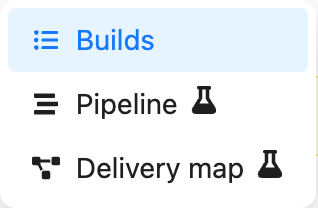
Three things follow from picking a view:
- the choice is remembered, so the next branch you open uses the same view;
- the choice is linkable - the address gains a
?view=parameter, and a link carrying it opens on that view whatever the recipient's own preference is; - an unknown or stale
?view=value falls back to the Builds view rather than failing.
The build filter and the validation stamp filter sit above the view, not inside it. A filter you set in one view is still in force when you switch to another.
The Builds view
The Builds view is the historical reading of a branch: one row per build, most recent first, with the promotions reached by each build and a column per validation stamp.
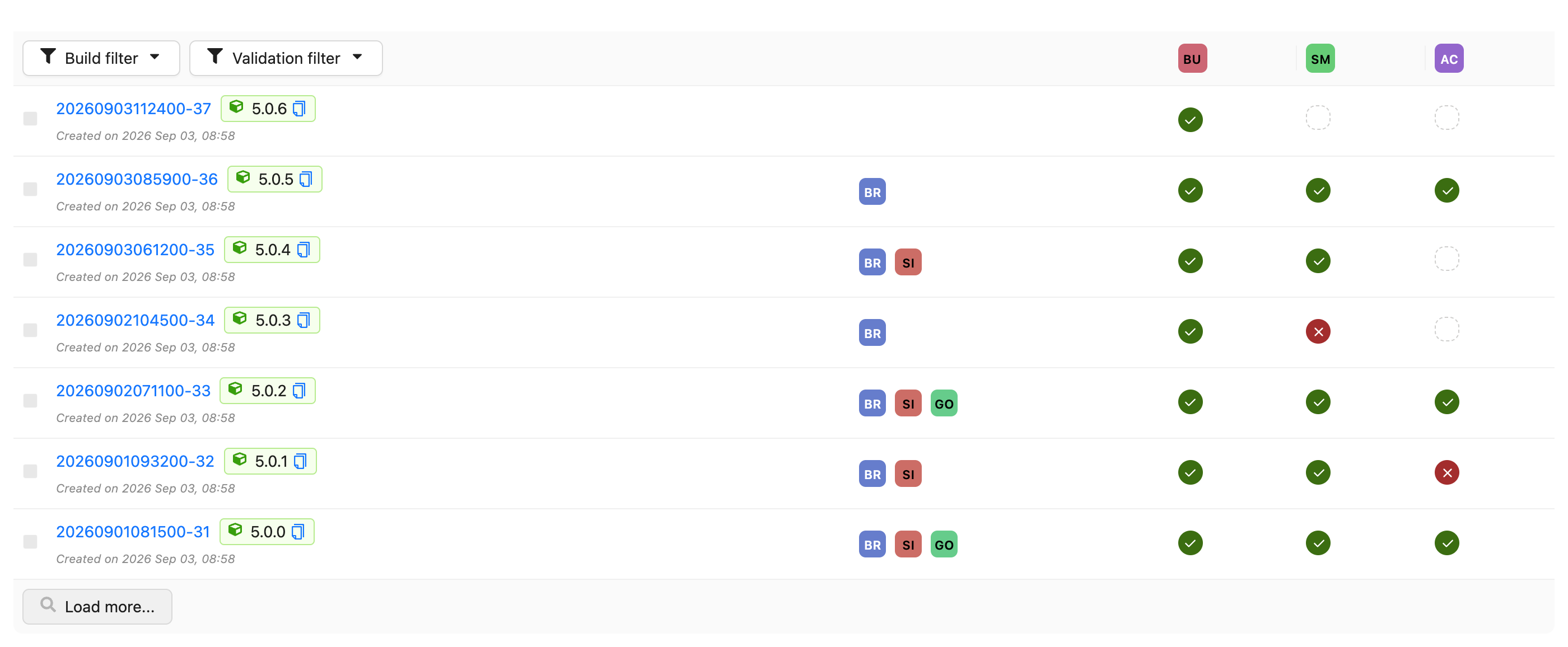
It is the view to use when the build list itself is the subject - looking for a particular build, comparing validation results across many builds, or selecting two builds for a change log.
The Pipeline view
Experimental
The Pipeline view is experimental and still being refined. It is marked as such in the product, with a flask icon next to its entry in the View menu and a dismissible banner on the view itself. Feedback is welcome in GitHub Discussions.

The Pipeline view answers a different question: not what has been built lately, but what is release-ready right now, and what does a release still have to go through.
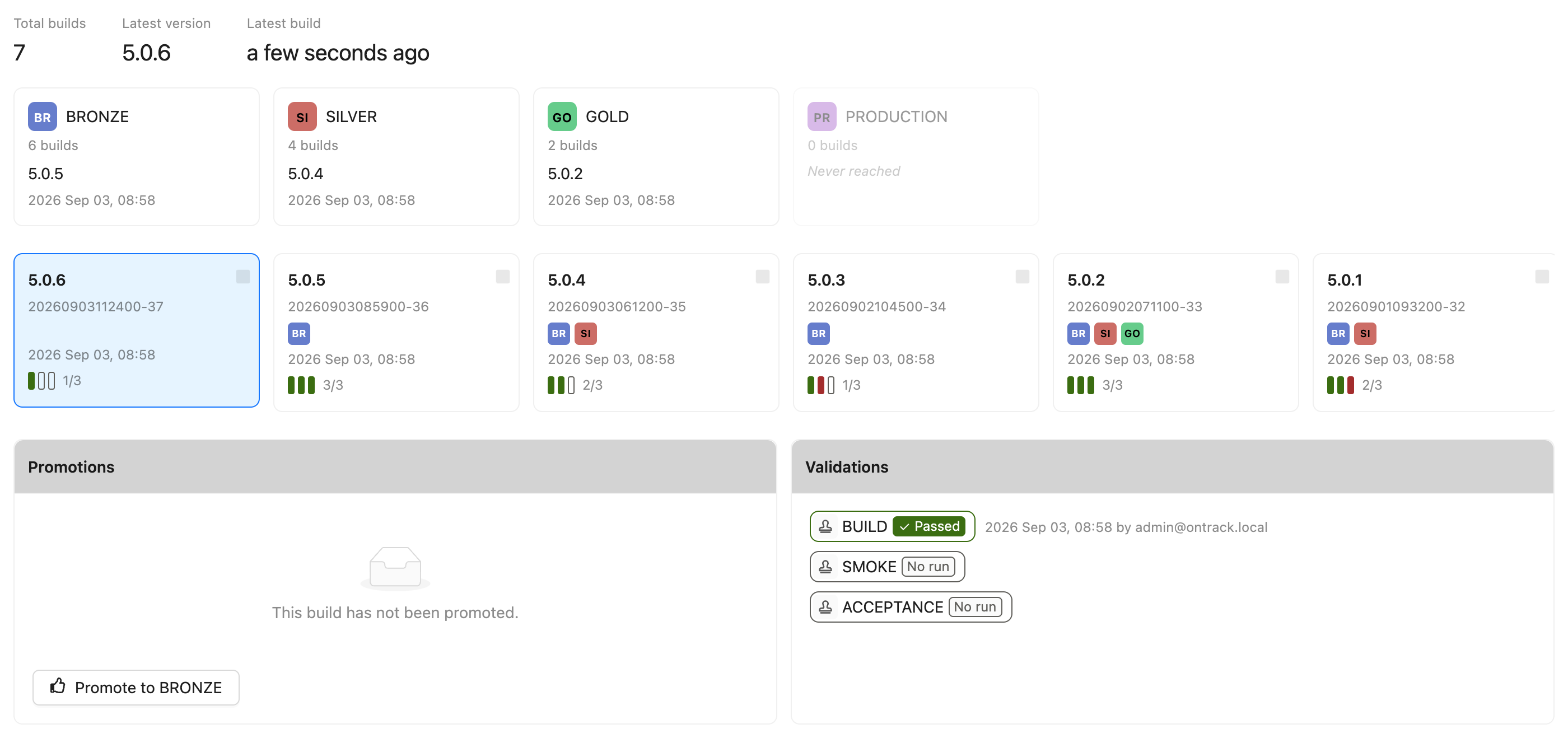
It has four regions, in the order they answer that question.
Branch facts

The total number of builds on the branch, the latest version, and when the branch was last built.
These are facts about the branch, outside any filter - the total does not move when you narrow the build filter, because a number that changes with the filter is a readout of the filter rather than a fact about the branch.
The latest version is the display name of the most recent build - its release label when it has one. It is deliberately not "the most recent build carrying a release": that is a different, more expensive question whose answer goes stale as soon as an unlabelled build lands. On a project which does not use release labels, the figure is omitted rather than repeating the build name shown just below.
The promotion band

One card per promotion level of the branch, in promotion order: how many builds have reached it, and which build reached it last.
A level nobody has ever reached is still shown, dimmed and marked Never reached - the band describes what a release has to go through, not only what has already happened. Clicking the build named on a card selects it in the inspector below, loading further pages of builds if that build is older than the ones currently shown.
The band is hidden entirely on a branch with no promotion levels, and on a branch with no builds: a full row of never-reached stages above an empty timeline states the obvious loudly.
The build timeline

The builds of the branch, most recent first, as cards rather than rows: version, build name, promotions reached, and how many of the validations selected by the validation filter have passed.
The timeline obeys the same build filter as the Builds view, and loads further builds on demand. Clicking a card selects that build.
Builds can also be selected in pairs here, with the same checkboxes as in the Builds view, to produce a change log between them.
The build inspector

Everything that is true of the one build currently selected: its promotions, with the button to promote it further, and its validations with their status.
The selected build is part of the address, as a ?build= parameter, so a build worth showing
someone can be linked to directly. Opening such a link selects the build it names even when that
build is old enough not to be in the first page of the timeline.
When no build is named, the most recent one is selected.
The Delivery map view
Experimental
The Delivery map view is experimental and still being refined. It is marked as such in the product, with a flask icon next to its entry in the View menu and a dismissible banner on the view itself. Feedback is welcome in GitHub Discussions.
The Delivery map answers a third question: what does a build on this branch still have to pass through on its way to an environment, and what depends on what.
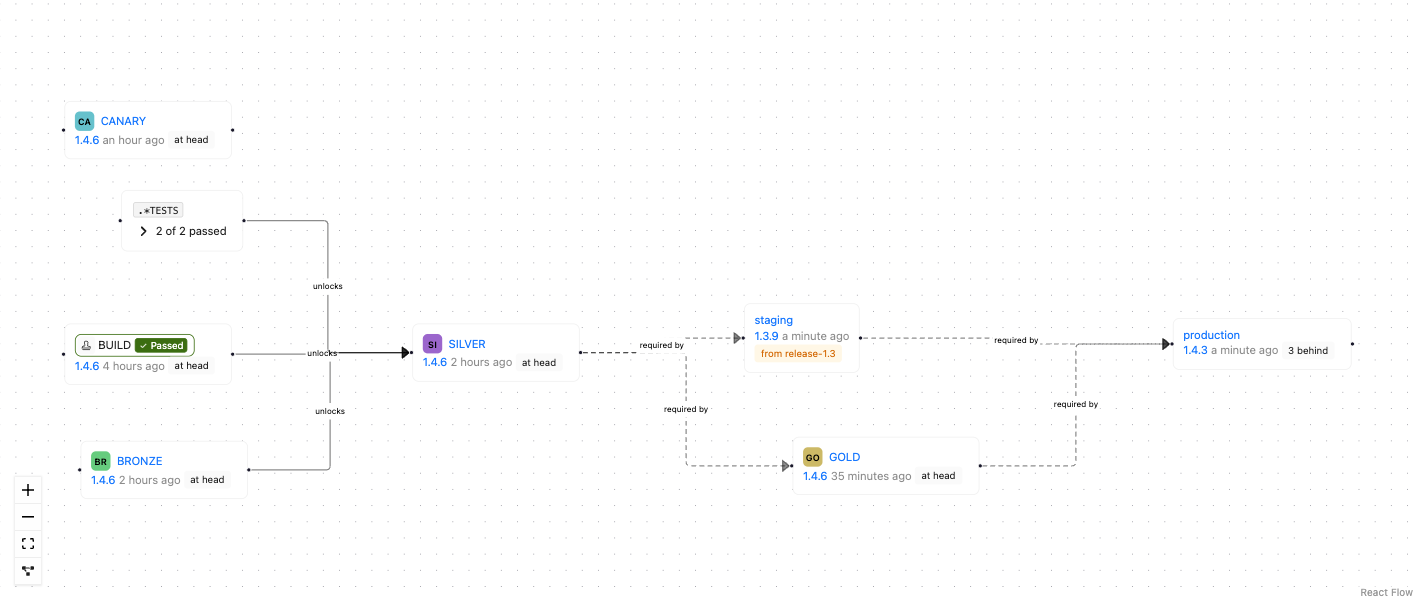
It is configuration with progress painted onto it, not a history. Every checkpoint on it is something a build has to reach, and every line between two of them is a dependency someone configured. Nothing on it is inferred from what has happened; a map with no lines is a project whose promotion and deployment rules have not been written down, not a project with no history.
Checkpoints
A checkpoint is one of the things the map is made of. The first three kinds below each name the latest build to have arrived at it and when; the other three name no build, and the table says why.
| Checkpoint | Arrived at by | The build it names |
|---|---|---|
| Promotion level | being promoted | the latest build of this branch promoted there |
| Validation stamp | a run of any outcome | the latest build of this branch run there, with its status |
| Slot | a deployment | the most recently deployed build, whatever its branch |
| Workflow | nothing - see workflows on the map | none: it would repeat its promotion level's build |
| Slot workflow | nothing - see workflows on the map | none: it would repeat its slot's build |
| Unresolved | nothing, ever | none - see when a rule points at nothing |
Arriving is not the same as succeeding, which is why the validation stamp is the only one of the three to show a status for the build it names: a build can arrive at a stamp and fail there, while a build cannot be promoted and fail. The workflow kinds show a status too, but it is the status of a workflow run rather than of a build — nothing arrives at them.
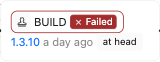
Every promotion level of the branch is on the map, connected or not - a level with no configuration behind it is exactly the thing you want to see. Validation stamps are the opposite: only the ones taking part in a dependency are drawn, because an unconnected stamp teaches nothing on a map whose subject is dependencies, and a branch with forty of them would have no readable layout. A promotion whose auto promotion selects stamps by pattern gets one aggregate checkpoint labelled with the pattern, standing for all of them; click it to see the stamps it covers.
How far behind the branch is
A checkpoint naming build 42 means little until you know the branch is at 47. The view's header names the branch's latest build, and every checkpoint says how far behind that build its own is:

- at head - the latest build of the branch has reached this checkpoint;
- 3 behind - three more recent builds of the branch have not.
The count is in builds, not in time. How long ago a build got there is the timestamp beside it, and it answers a different question: a checkpoint reached an hour ago by a build from last week is not up to date.
The latest build is stated once, in the header, and is deliberately not drawn as a checkpoint on the map. Every line on the map means unlocks or requires; a line from the latest build to each checkpoint would mean neither, and would fan out across the whole map at once. Twenty checkpoints each stating their own lag are read one at a time.
A slot showing a build of another branch carries no marker at all. Counting that build against this branch's latest one would answer a question nobody asked, and would answer it with a number, which reads as a fact rather than as a mistake.
Dependencies
Lines run from what happens first to what follows it, and come in three kinds, drawn differently:
| Kind | Means | Labelled | Drawn | Comes from |
|---|---|---|---|---|
| unlocks | reaching the source grants the target by itself | unlocks | solid | auto promotion |
| requires | the target cannot be reached until the source has been | required by | dashed | promotion dependencies, slot admission rules, the previous promotion condition, a slot's CANDIDATE and RUNNING workflows |
| emits | reaching the source sets the target off, and nothing waits for it | emits | dotted | a promotion's workflows, a slot's DONE workflows |
The label on a line is read along the arrow, which is why the second one reads required by
rather than requires: SILVER required by GOLD is the line GOLD requires SILVER draws.
The kinds are told apart by their dash pattern and by their label, never by colour: a dash survives greyscale and colour blindness.
The distinction matters because the three are configured in ways with different effects. Auto promotion acts: pass the validations and the promotion happens. A promotion dependency or an admission rule only constrains: it permits, and something else still has to do the promoting or the deploying. A workflow set off by a promotion does neither: it happens because of the promotion, and the promotion does not wait to see how it goes.
The previous promotion condition
The previous promotion condition is the third source of
requires lines, and the only one that is not configured on the thing it constrains. It says that a
promotion cannot be granted before the level immediately below it on the branch, and it is looked up
in turn on the promotion level, then the branch, then the project, then in the global
settings — the first of those to carry it decides, whichever way it answers. A false on the
promotion level therefore genuinely overrides a true on the project; it is an answer, not a gap.
The map draws the line wherever that lookup ends in yes, wherever the answer came from. Drawing it only where the property sits on the promotion level itself would show a strict subset of what will actually block, and an absent line reads as nothing stops me.
What the map does not say is where in that chain the condition was set — a line looks the same whether it comes from the promotion level or from the global settings, and it looks the same as a promotion dependency naming the same pair. Where both say the same thing, one line is drawn. The question this leaves open — why can I not promote? — is answered exactly by trying: the refusal names the entity that decided.
Because only the level immediately below is ever named, a branch with five promotion levels draws at most four of these lines: one path down the ladder, not a web across it.
A requires that duplicates an unlocks is not drawn
Where the same directed pair carries both kinds — A auto-promotes into B, and something says B requires A — only the unlocks line is drawn. Auto promotion goes through the same promotion path as everything else, so the constraint is checked and passes, every time, because the level that would block is the one that just triggered the promotion. It can never fire, and two lines with opposite readings on one pair would say that something might block when nothing can.
This applies to every source of a requires, promotion dependencies included: a dependency shadowing an auto promotion is configuration that can never have an effect, and the map shows the one line that is true.
Slots on the map
The map draws every slot of the branch's project, and joins them to the rest from the slot's own admission rules:
- a promotion admission rule draws a requires line from that promotion level to the slot. The promotion is resolved by name on this branch, so the same slot configuration produces a different line on every branch - which is exactly why slots belong on a branch view at all;
- an environment admission rule - "must already be deployed in staging" - draws a requires line from that slot to this one.
A rule naming something that does not exist still draws its line, into an unresolved checkpoint.
Slot-to-slot lines come only from that rule. The map deliberately does not fall back to the order of the environments, the way the project's slot graph does. Ordering says which environment comes first; it never says that one deployment requires another. Where nobody configured the rule there is no line, and the slots hang off their promotion checkpoints without joining up to each other.
That makes the map look sparser than the chain drawn on the project's environments page, and the sparseness is the point: it is the reading which shows you a slot nobody wired up, rather than one which invents a dependency you never declared. Adding the environment admission rule to the slot both fixes the deployment and fills in the line.
Two things about a slot are unlike every other checkpoint.
A slot may name a build from another branch. A slot shows what is deployed in it, and what is deployed in production is a fact about the project rather than about the branch you happen to be reading. When that build is not of this branch, the map says so beside it. The alternative - showing nothing - would read as nothing is in production, which is the most damaging thing the map could get wrong.
A slot this branch can never reach is marked unreachable, and names no build. If an admission rule excludes the branch by name or pattern, no build of it can ever deploy there however far it is promoted. Such a slot is still drawn, because "you cannot get there from here" is the most important answer the map can give; leaving it out silently would leave you wondering why production is missing.
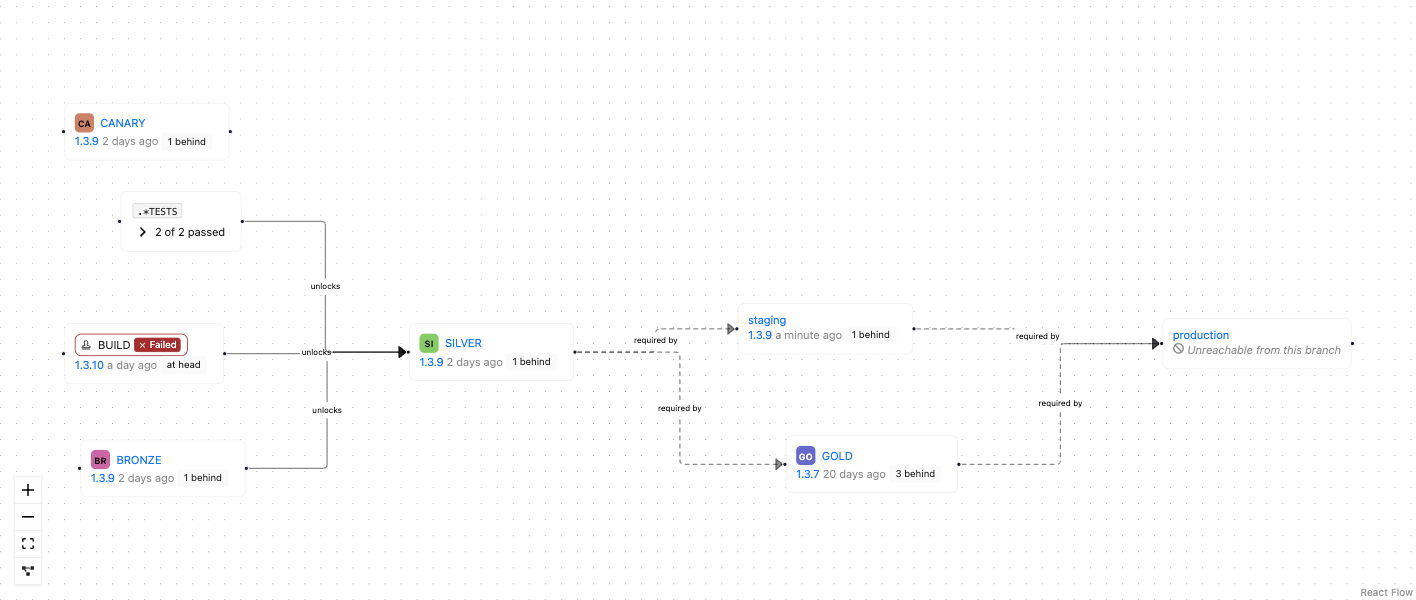
Both pictures above are the same two slots, read from two branches of one project: the main branch reaches production and finds a maintenance build occupying staging, while the maintenance branch cannot reach production at all.
Workflows on the map
A workflow is drawn as a checkpoint of its own, so that what a promotion set off, and what a slot is waiting on, are read beside the promotion and the slot themselves rather than on another page.
The two sides behave differently, and the difference is worth knowing.
A promotion's workflows are drawn from what actually ran. A workflow reaches a promotion level through a notification subscription on the promotion event, and the only trace of it is the notification record the run left behind. So the map shows the workflows of the run the promotion level names — that build's promotion, and no other — and a promotion level that has never been promoted shows no workflows at all, even when subscriptions are configured on it. Notification records and workflow instances are both cleaned up on a retention schedule, so an old promotion can legitimately end up showing none either.
Those workflows are joined to their promotion level by an emits line. Nothing about the promotion depends on them: they run once it has been granted, and it does not wait to see how they go.
A slot's workflows are drawn from its configuration, whether or not anything has ever run. Each one says which of the three moments of a deployment fires it, and that is what decides how it is joined to its slot:
| Trigger | What it does | Line |
|---|---|---|
| on candidate | the deployment cannot start until it passes | requires, into the slot |
| on running | the deployment cannot finish until it passes | requires, into the slot |
| on done | runs once the deployment is over; nothing waits for it | emits, out of the slot |
The first two are hard gates, unconditionally and with no admission rule involved. A slot carrying workflows on several triggers therefore straddles its own column, its gates to the left and its consequences to the right.
A slot workflow that has never run is still drawn, and so is its line. That matters most for the gates: a workflow on candidate that never ran is not dormant — it is very often the reason nothing has ever deployed to that slot, and saying so is the most useful thing the map can offer about it.
The run each slot workflow shows comes from the slot's current pipeline when there is one, and from the last deployed pipeline otherwise. The slot checkpoint's own build keeps coming from the last deployed pipeline alone, so the map never claims a build has arrived somewhere it has not.
Every workflow checkpoint names its workflow, says where the run got to and how long it has taken so far, and links to the run itself. A workflow still going shows the time elapsed since it started; the value moves when the map refreshes, and does not tick.
Show › Workflows in the toolbar takes both kinds off the map at once, together with the lines touching them. One toggle rather than two: a reader who wants workflows out of the way wants all of them out of the way.
Two workflows of one promotion sharing a name
On the promotion side a workflow checkpoint is identified by its promotion level and its name, because there is no configured object behind it the map can reach. Two subscriptions on one promotion level whose workflows happen to share a name therefore collapse into a single checkpoint. Renaming one of them separates them again.
When a rule points at nothing
Both slot admission rules name their target by name: "requires the GOLD promotion", "requires a deployment in staging". Nothing checks that the name matches anything. A rule can name a promotion level the branch does not have, or an environment the project has no slot in, and the configuration will be saved and will look perfectly healthy on the slot's own page.
Until somebody tries to deploy. Then the deployment refuses, with Promotion not existing, and that is the first anyone hears of it.
The map draws such a rule as an unresolved checkpoint, carrying the name the rule asked for and marked as matching nothing, with the rule's line running out of it as usual.
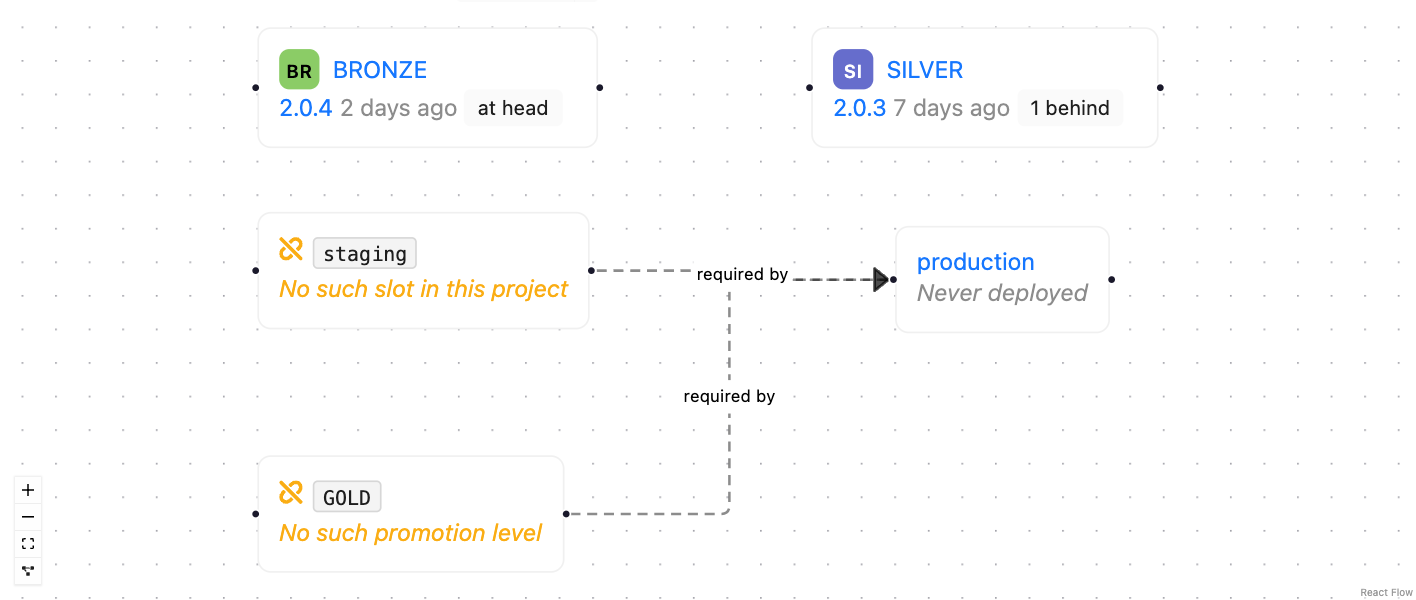
Drawing nothing at all was the alternative, and it is the wrong one - the map would then quietly agree with the broken configuration. This is arguably the strongest reason to look at the map: it turns a misconfiguration nobody can see into something visible on a page people already open.
An unresolved checkpoint is never what a checkpoint you are not allowed to see looks like. Something hidden by permissions is left out of the map entirely, together with every line touching it - it does not become an unresolved checkpoint, and it never will. The two would otherwise be impossible to tell apart, people would read "unresolved" as "probably just permissions", and the map would stop being trustworthy for exactly the case it exists to catch.
The fix is never on the map, which is a reading of the configuration and not the configuration itself: either create what the rule names, or change the rule on the slot to name what exists.
Filters, and what the map does with them
The map obeys the validation stamp filter, which sits above the view switch like every other filter and follows you from one view to the next. The filter touches validation stamps only: hiding a promotion level or a slot because of a validation filter would be a different claim entirely. An aggregate checkpoint disappears when the filter leaves it standing for nothing, and any line left with a missing end goes with it.
What the map draws, and how it draws it
Two sets of controls, and the difference between them is worth knowing.
What is on the map is chosen in the view's own toolbar, beside the latest build. Show › Validation stamps takes every stamp checkpoint off the map, aggregates included, together with the lines which ended on one. It is on by default - a map opening on a chain of promotions with no visible cause hides the very thing which explains them - and off is worth having on a branch whose stamps outnumber everything else on screen. Show › Workflows does the same for both kinds of workflow checkpoint. Each choice is remembered in your browser, per screen rather than per account, unlike the view selection itself.
How the map is drawn is the small control bar in the corner of the graph: zoom, fit, and a layout button which puts the map back in order after you have dragged it about. Checkpoints can be dragged; nothing on the map can be edited from it. It is a reading of the configuration, and the configuration is changed where it lives - on the promotion level, on the branch, or on the slot the checkpoint links to.
Refreshing
Auto refresh in the toolbar reloads the map on an interval you pick, like the other graphs of the product.
The map does not rearrange itself when it refreshes. Almost nothing on it changes minute to minute: the configuration is static, and what moves is which build has arrived where. So a refresh that finds the same checkpoints and the same lines updates the builds in place and leaves every checkpoint where it is - including any you dragged. The layout is recomputed only when the map's shape has genuinely changed: a checkpoint or a line appearing or disappearing.
Not to be confused with
The word pipeline is used for two unrelated things in Yontrack:
- the Pipeline view described here, which is a way of reading a branch, and changes nothing;
- the deployment pipeline of the environments feature, which is a real object with a lifecycle - created, deploying, deployed - representing one attempt to deploy a build into an environment slot.